Explore this blog

Showing posts with label Microsoft. Show all posts

10 Nov 2015

Create New Alert Button in SharePoint 2013

How to create a New Alert Button for Users on a SharePoint 2013 Page


  1. Open the 'New Alert' Window on the list or library you want people to subscribe to.
  2. Right click anywhere on it and click "View Source".
  3. Look for the address after href="http<bla bla bla" Make sure it has 'subnew.aspx?
  4. Copy from http:// to ".aspx"
  5. Add fun image into your page (Alert Me or Subscribe) and insert the link copied above as the address.
  6. Test.


Trying to reduce the use of distribution lists and such. Much easier for users to choose when and how they get notifications from the site.

Thanks,
Dee

9 Dec 2014

Turn off Automatic Mark as Unread in MS Outlook

If you are like me and skim read the messages in your Outlook first, then go back to action them then turning off the automatic 'mark as unread' is very useful.

See below for turning this function off in Microsoft Outlook 2010

1. Click View
2. Click Reading Pane
3. Click Options


3. Un-tick the 'Mark Item as read when selection changes'


4. Press OK and enjoy a more 'you' outlook!

Cheers,
KiwiDee


7 Dec 2014

Easy Microsoft Project 2010 Tutorial

Watch the presentation below with easy context and YouTube videos embedded.
Note this is designed for students in a Project Management class so a few things may not make sense.


_________________________________________________________________________________

The embedded Youtube videos (3 parts) are in the Prezi above but these are the direct links:


Part 1 of 3 Microsoft Project Tutorial 
How to get a kick start into using Microsoft Project 2010 - entering tasks, duration's and predecessors. 


Part 2 of 3 MS Project 2010
Shows grouping tasks, fixing up the chart, adding resources, assigning resources and setting baseline.


Part 3 of 3 MS Project Tutorial
Includes Task Completion, how to implement changes and view the tracking Gantt Chart, view overall budget and time changes.
_________________________________________________________________________________

Background
This was created as part of my studies required me to put together a digital technology learning module and I chose MS Project 2010. It follows the 4 stages of Project Management - Initiation, Planning, Implementation and Closing. I tried not to make it boring and really informative !

Cheers,
KiwiDee

3 Dec 2014

How to Screenshot


Makes your life so much easier when you want to share something you find on your computer (and errors in software - really good to send to the IT crowd if you need serious help!).

Computer:

1. Ctrl, Alt, PrtSrn


2. Ctl C and Ctrl V into document or email

3. You can further crop the screen shot in Microsoft Word by clicking on the image and following the below:


iPhone: 

1. Top tun off button and main home button at the same time


2. You will find the image under your Photos in the phone

3. Click the wee square with arrow in it (share button) if you want to email or message others about it.


Other
Install a screen capture tool on your device like
- Green Shot on PC
- Just take a picture of the computer screen with your camera! easy :) Although wont be very nice quality image
http://lifehacker.com/5218155/five-best-screen-capture-tools

Cheerio!

KiwiDee

26 Sept 2014

How To Add a Password On Excel Spreadsheet

Excel Tip
How To Add a Password On Microsoft Excel Workbook/Spreadsheet so others can't modify it but can read it. So peeps can't mess with your stuff! MY... PRECIOUS..

1. Have the spreadsheet open you want to put a password on.
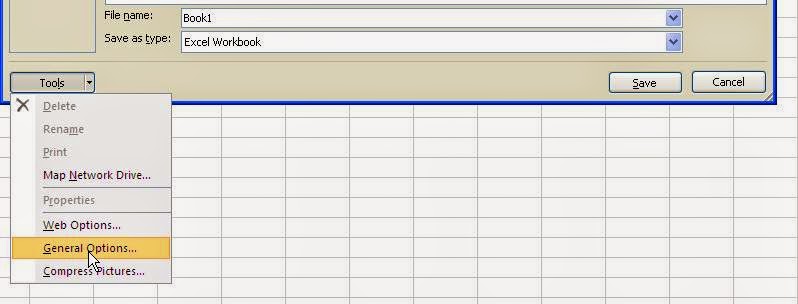
2. Click File, Save as
3. Click bottom left button 'General Options' in the Save as window


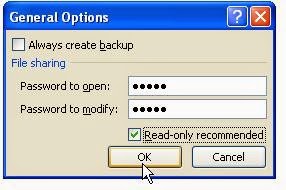
4. Type in your preferred password in both fields. Tick the box and press OK.


5. Press Save.
6. Cancel out of document and test your password

DONE BOOM!


Your Welcome,
KiwiDee
Related Posts Plugin for WordPress, Blogger...